Launching
Launching Fallen World
Once the installation is complete, everything from this point is handled by our custom tool. Simply launch the launcher and it will take you through all the next configuration steps.
Step 1 - Launch with MO2
To begin your experience, you must launch the game through Mod Organizer 2.
- Open Mod Organizer 2 from your installation folder.
- Select Fallen World Launcher from the executable dropdown in the top-right.
- Click Run.
⚠️Always launch through MO2
Always launch using the MO2 "Run" button. Launching directly from Steam or the game desktop shortcut will cause the modlist to fail.
Step 2 - Configure Settings
When the Fallen World Launcher opens, it will walk you through your final setup automatically.
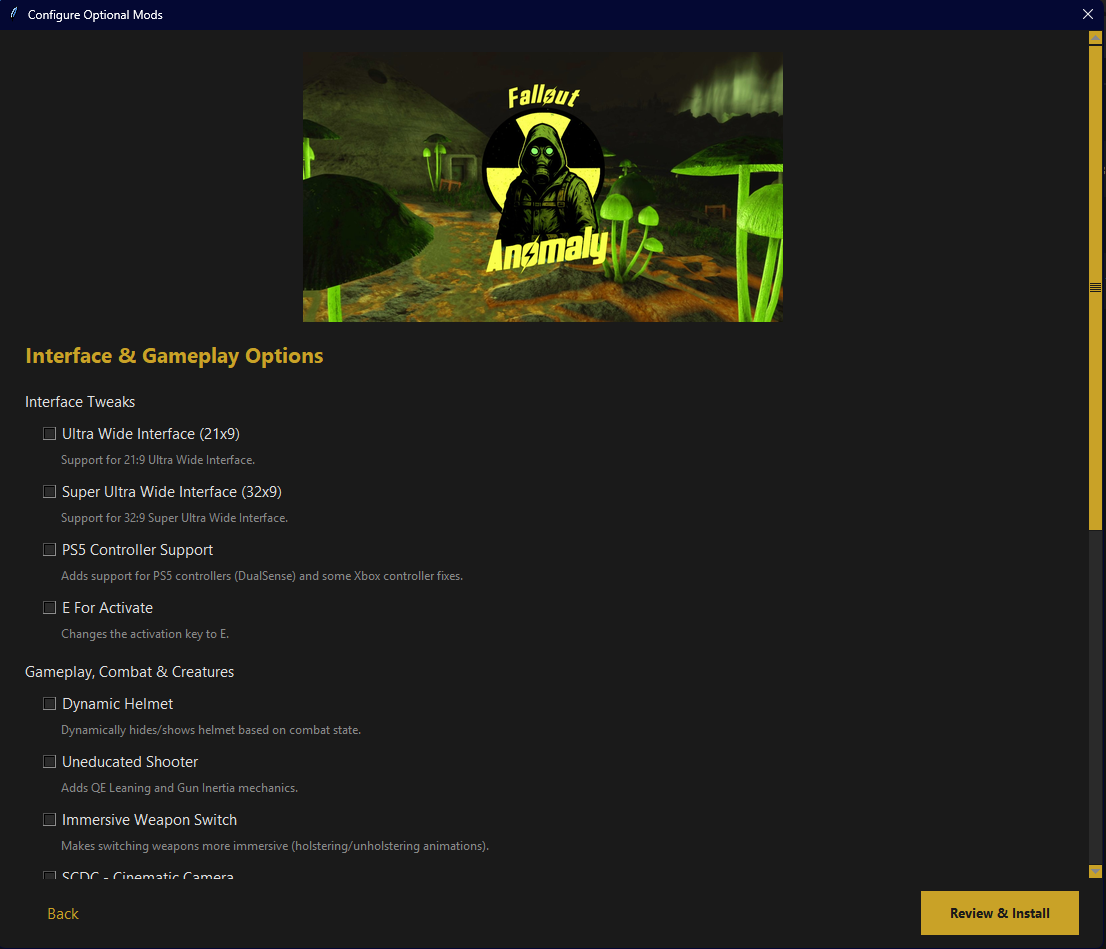
The launcher will handle:
- Resolution Settings: 1080p, 1440p, 4K, and Ultrawide support.
- Gameplay Options: Toggle creature skills, tactical features, and more.
- Visual Customization: Choose your map style and performance profiles.
- Automatic Updates: The tool will check for patch before starting.
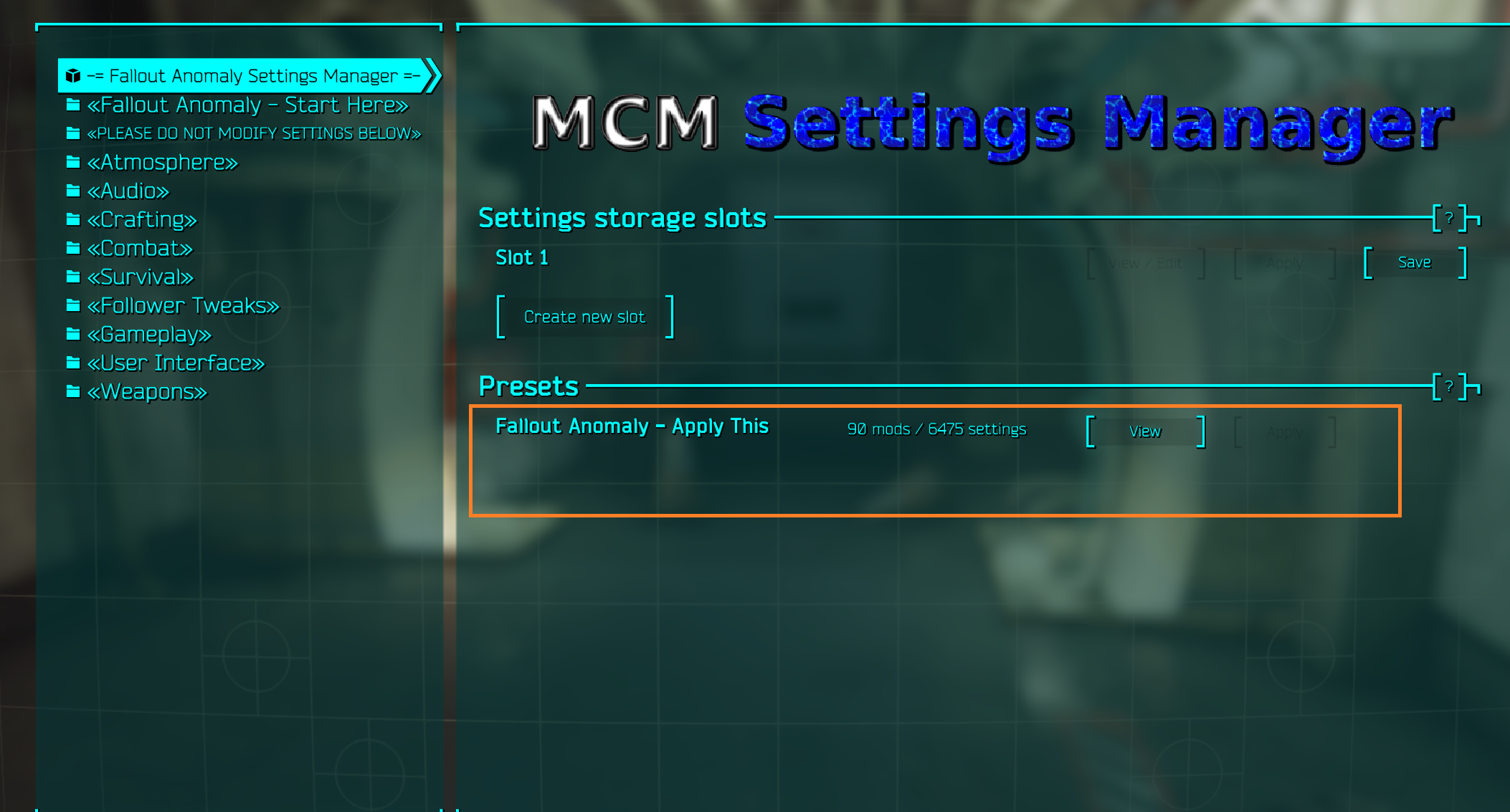
Step 3 - Final In-Game Step: MCM Preset
Once you reach the main menu and start your game, you will be prompted to apply the MCM Settings Manager preset.
This is critical. It ensures all 600+ mods are configured with the correct survival and combat settings.
💡Need help?
If you run into issues during the launch or want to customize advanced settings (like manual ENB changes), see our [FAQ & Troubleshooting](./faq) page.